How to Clear the Cache in Chrome
Refresh stored page assets on desktop Chrome while keeping your browsing history and cookies.
Select this item alone to clear the browser cache.
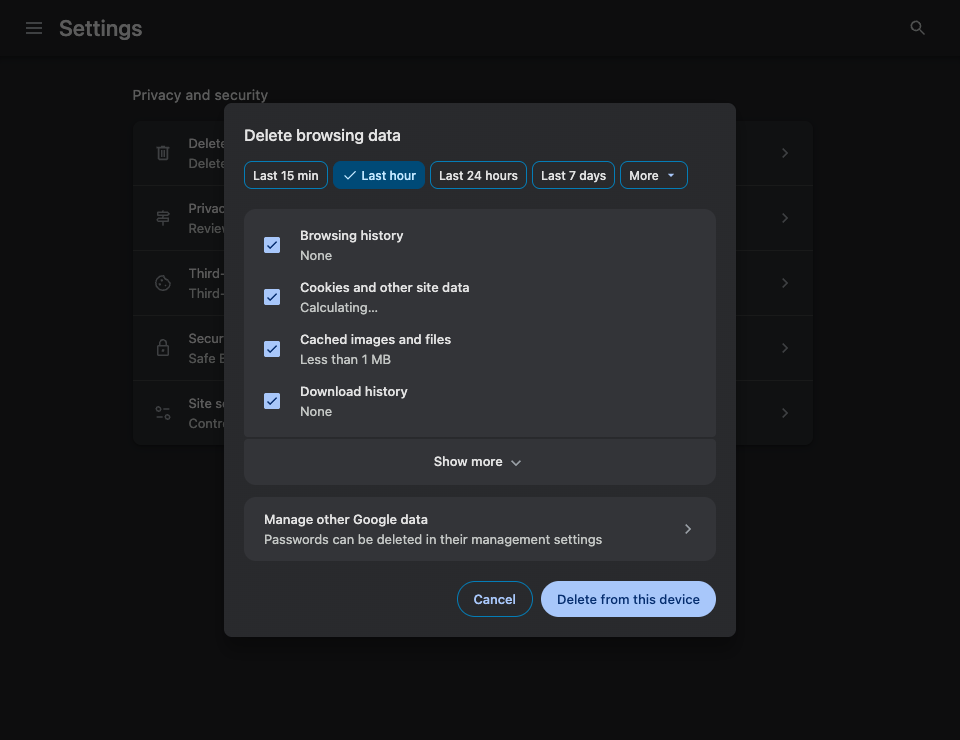
- Keep selected
- Cached images and files
- Leave unchecked
- Browsing history and cookies
Step by step
Open Chrome’s deletion dialog
Open the three-dot menu at the top right and choose Delete browsing data.
Pick a time range
Use a recent range if the page only started failing today. Choose All time if you want to remove every cached item.
Review the checkboxes
Select Cached images and files. Leave browsing history, cookies and other site data, and any other data you want to retain unchecked. Look for the full list of data types if the dialog opens in a simplified view.
Confirm and reload
Choose Delete from this device (or Delete data, depending on your version), then reload the affected page. The first load may be slower while Chrome downloads fresh copies.
Official instructions and references · Google Chrome Help