Find Your Public IP Address
Look up the address your current internet connection shows to websites and tell it apart from your local address.
If the search page shows an address, it is the one seen by that service for your current connection.
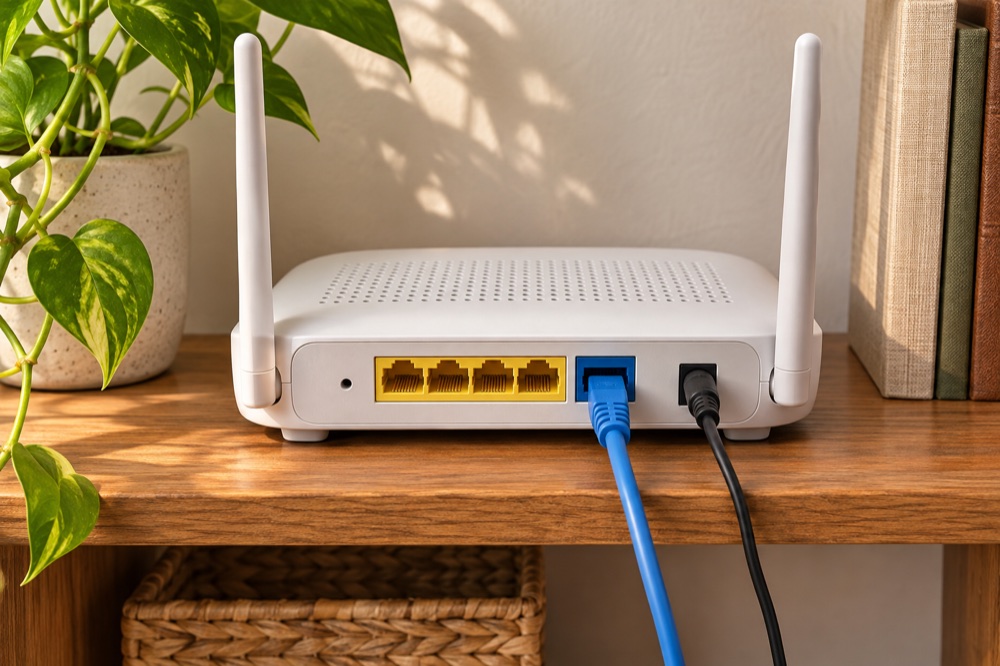
- Public IP
- Address seen by the site you connect to
- Local IP
- Address assigned on your local network
- VPN
- The site may see the VPN’s address
Step by step
Check the connection you mean to inspect
Use Wi-Fi if you want to check your home connection. Use cellular data if you want to check your carrier connection. A VPN can change which address a website sees. Run the check again after switching networks.
Recognize the address format
IPv4 usually appears as four decimal numbers with dots between them. IPv6 uses groups separated by colons and may contain letters a through f. Some connections support both. A lookup may display only the one used for that particular request.
Keep local and public addresses straight
A laptop’s network settings may show a local address beginning with 192.168 or 10. That can help you find devices on your home network. To see what a website receives, check from the browser on the connection you care about.
Share the result only with the intended recipient
If a support technician asks for the address, send it through the agreed support channel and record which network or VPN was active. Use a documentation address such as 192.0.2.10 when you only need an example.
Official instructions and references · American Registry for Internet Numbers · Private IPv4 ranges (RFC 1918) · IPv4 documentation addresses (RFC 5737)