How to Record Your Screen on Windows
Use the recording mode in Snipping Tool on supported Windows versions.
Select a region and start the recording after checking what appears in the frame.
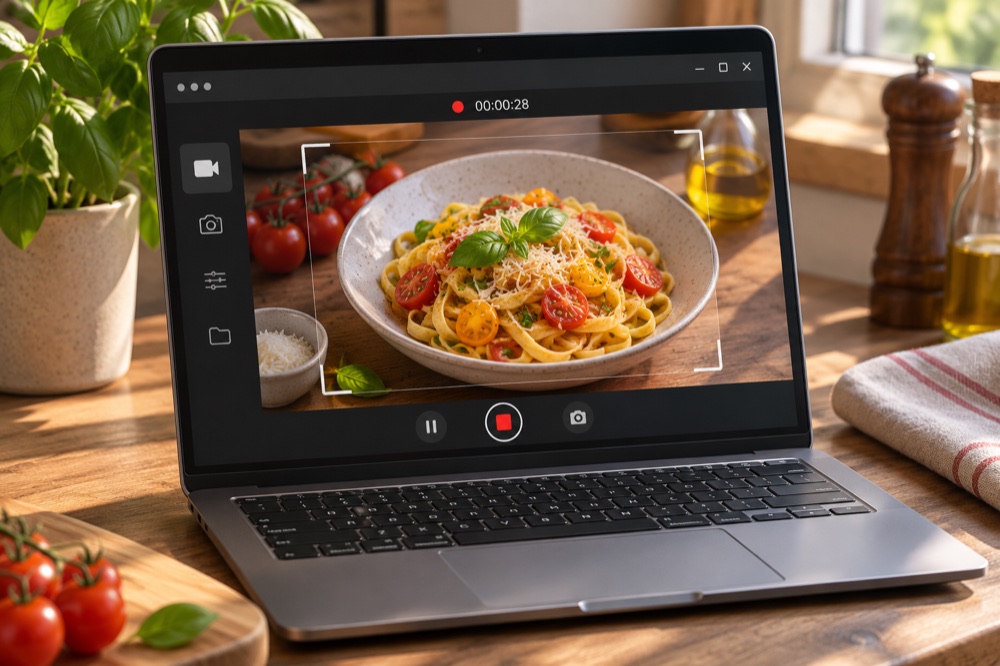
See the interface in Microsoft Support ↗
Step by step
Prepare the screen
Close private windows and pause notifications if needed. Open Snipping Tool and look for its video or record mode.
Select the part to record
Choose New and draw a region around the content you need. Check the microphone or audio settings displayed in your version before starting.
Stop and save a test clip
Use the stop control, then preview and save. Play the resulting file to confirm the frame and audio. Some apps or work policies can restrict capture.
Official instructions and references · Microsoft Support